
Managing a Case
Last updated 19 February 2026
On this page
Once the case has been added to the system, you can click into it to begin reviewing and investigating it by navigating through the different tabs.
You can record actions, add notes, upload evidence, assign an owner and update the case status as the investigation progresses.
Please Note: The steps below guide you through each section of a complaint, but you don’t need to complete every step for every case. If appropriate, you can simply record the key details and Skip to Resolution.
Overview
In the Overview tab, you’ll find key case details on the right-hand side, including status, stage, and owner. You can also view the original concern and upload any relevant attachments.
Summary
If a summary was not created when the case was first logged, it can be added within the Overview section. You can either write your own summary of the complaint or use CompanionAI to generate one based on the original details provided.
If a summary was already added during case creation, it can also be reviewed and amended here at any time.
When using the generated option, make sure to review the text carefully. You can edit the wording as needed or generate a new version if you would like an alternative.
Once you are happy with the summary, click Save.
Acknowledgement
You are also able to add an Acknowledgment. If you’ve already sent one, you can copy and paste it into the field, or use the CompanionAI feature to generate a response.
The AI-generated response can be refined by selecting one of the predefined options in the dropdown or by entering your own prompt. When you’re ready, select Generate and Save.
You can either use the Open in Email option to open the acknowledgement in your email application, where you can add a recipient and subject line, or copy the acknowledgement from Companion and paste it into a separate email.
After sending the Acknowledgement, select Mark as sent to record the date and time it was sent within the case.
Please note: Saving the Acknowledgement simply records that the communication has been sent and adds a date and time stamp to the case record. This creates an audit trail but does not send the email.
If you would like the actual email to appear in the case communications, you can forward it to your unique Companion email address and link it to the case, or copy your Companion email address into the email when sending and link it afterwards.
Key Issues
Key issues are designed to help break a complaint down into the different areas or concerns the complainant would like investigated, helping you manage and track each part of the case more clearly. However, using key issues is completely optional and cases can still be managed without them if preferred.
If key issues were not created when the case was first logged, you can add these at any time within the Overview tab. You can use CompanionAI to generate suggested key issues, manually add your own or use a combination of both.
Investigation
Once you are happy with the information in the overview, navigate through to the Investigation to begin creating notes and and adding tasks
Notes
Notes, findings and attachments can be added directly into the notes area within the Investigation tab. These can either be linked to a specific task or added independently without being attached to a task.
Tasks
Within the Investigation tab, you have the option to create a task list to help manage actions and next steps within your case.
You can use CompanionAI to generate suggested tasks based on the information already held within the case, manually create your own tasks, or use a combination of both.
For each task, you can assign it to a user within Companion and set a due date. The due date will automatically default to the case’s resolution due date, but can be amended at any time if needed.
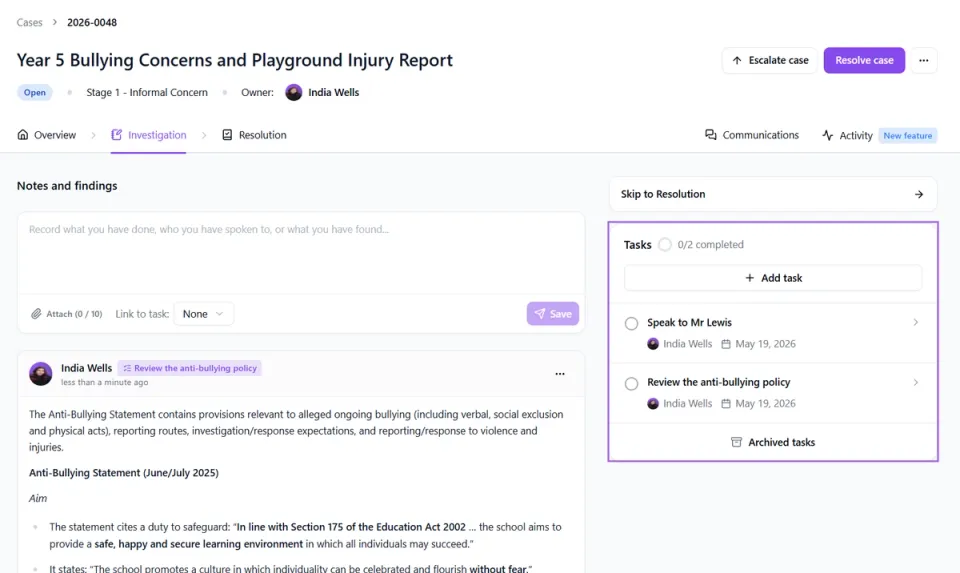
As you work through each task, you can add Notes / Findings (such as interview notes) at any time, along with any relevant Attachments. Any notes added to a task will also appear in the Notes and findings section of the investigation tab.
Once you are satisfied that a task has been completed, you can tick it off either directly within the right-hand panel or within the task itself.
Policy Review
Policy Review allows you to analyse your school policies within a task and add relevant extracts directly to your findings. It will automatically pull out the sections of your policies that are most relevant to the case and the task at hand.
How to use Policy Review within a task:
Firstly, ensure the relevant policy is uploaded in Settings > Policies
- Within the relevant issue, create a task (e.g. Review Complaints Policy)
- Open the task and select Review Policies
- CompanionAI will automatically extract relevant sections of the policy for you to review
- You can then add these extracts to the task’s Notes and Findings if needed
Archiving Tasks
- Navigate to the relevant task
- Click the three dots next to the Complete Task button
- Select Archive
- Click Confirm
Once archived, the task will no longer appear in the main Tasks tab or within the active case view.
If you need to restore the task at any time:
- Open the relevant case
- Go to the Tasks tab
- Click the Archived button
- Select the task you would like to restore
- Click Unarchive
Resolution
Once you are satisfied that the case has been sufficiently investigated, navigate to the Resolution tab to resolve the issues and create a report and draft outcome communication.
Resolving Issues
If key issues were created, you can resolve them by selecting Resolve for the relevant issue. You will then be prompted to record the Resolution decision (EG upheld, partially upheld etc) and add any relevant Notes / Justification to explain the outcome.
After completing this, click Complete Investigation to finalise that issue. Issues can also be resolved within the Investigation tab, following the same process.
This process can then be repeated for each issue within the case.
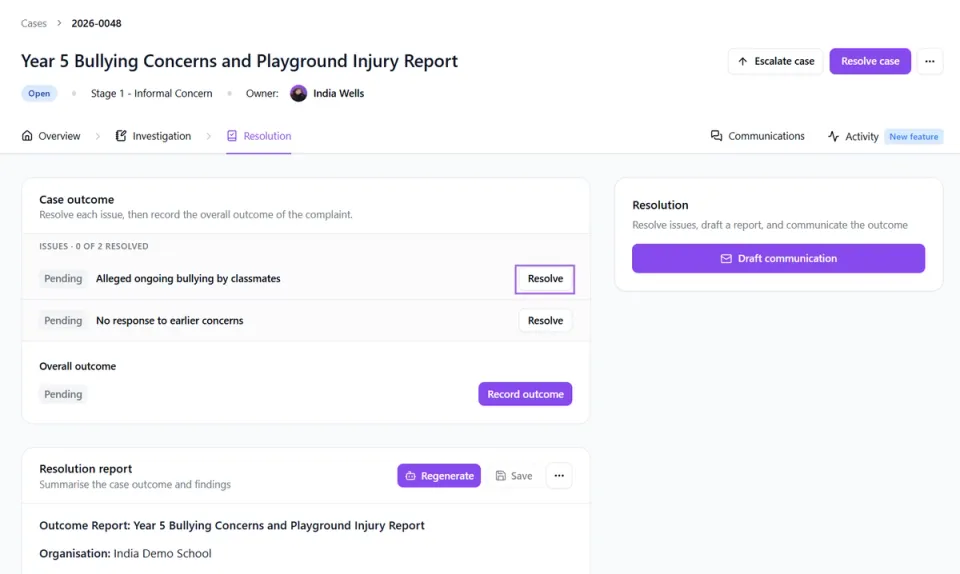
Overall outcome
Companion now gives you the option to record an overall case outcome within the Resolution tab. This can be useful if key issues were not created but you still want to record a final case outcome, or where different key issues have different outcomes and you would like to capture the overall decision reached for the complaint as a whole.
Resolution Report
You can use the CompanionAI feature to generate a resolution report based on the information recorded in the case. Simply select Generate. The report can be edited or regenerated as needed. When finalised, select Save Report to store a copy within the case.
If a report has already been prepared, select Start Writing, enter the relevant information, and click Save Report to complete and store the record.
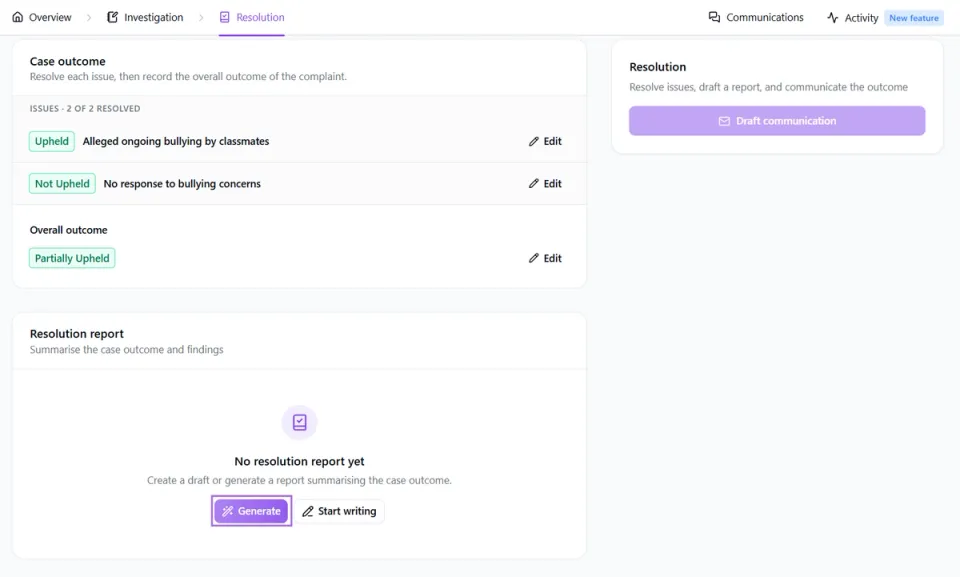
The saved report can be copied into other documents if required by clicking on the three dots next to the save button.
Resolution Outcome
To log and draft outcome communication, select Draft Communication within the Resolution tab and choose the method of communication you will be using.
You can then select Generate for CompanionAI to create a draft response based on the information held within the case. Once generated, you can review and edit the response as needed or regenerate it using an additional prompt.
Alternatively, if you have already drafted and sent communication to the complainant outside of Companion, you can simply copy and paste the response into the communication area to keep a complete record within the case.
When you are happy with the communication, you can either use the Open in Email option to open the resolution communication in your email application, where you can add a recipient and subject line, or copy the resolution communication from Companion and paste it into a separate email..
Once the outcome has been sent to the complainant, select Mark as Sent and add the relevant sent date to keep a clear audit trail within the case.
Resolving a Case
Once you’re satisfied the case has been resolved, select the Resolve Case button. The case will then be marked as resolved within the system and will move to the Resolved tab under Cases.